
It is essential to maintain formatting in the conversion of files, particularly Excel documents. You may take hours to align the cells, colors, fonts, or charts, and then you lose them when you convert. Among the most frequent problems that clients encounter when performing Excel to PDF conversion is distortion. This comprises ripped-up layouts, clipped-off sheets, or lost graphs.
That is where the WPS Office comes to the rescue. It makes the process easy and assists in maintaining the integrity of your work. The Excel to PDF functionality is easily accessible and allows you to make sure that your file appears exactly as you want it to appear on any device.
Understanding Formatting Challenges During Excel to PDF Conversion
Issues with formatting in the conversion process are more frequent than you might imagine. The cell alignments are frequently not matched with row and column shifting. This destroys the graphical format of your file.
The output PDF can have the charts or images broken or improperly resized. The fonts and styling can also end up being inconsistent when switching platforms. In other circumstances, sheets are cut, and invisible information is still left in the end file.
Such difficulties typically occur due to converters having no skills in reading the design-related elements of Excel. This is why you should have a tool that comprehends and honors your layout.
Why WPS Excel to PDF Converter Stands Out
WPS Office solves these formatting issues with precision. It’s Excel to PDF converter maintains layout integrity, regardless of the device used. You can convert a file on your phone and open it on your desktop, without losing structure.
The tool preserves fonts, cell colors, and even embedded formulas. This means you don’t have to re-edit the file after conversion. Everything stays just the way you intended. It’s ideal for professionals needing clean, polished reports and presentations.
File Compatibility and Portability of WPS PDF Format
The compatibility is yet another strength of the WPS PDF Converter. It supports XLS and XLSX extensions of Excel files. Even multi-sheet documents can be translated without errors and cuts.
WPS PDFs are readily accessible on any platform. Whether you use Windows, Mac, Linux, Android, or iOS, the result remains consistent. That’s the benefit of the Portable Document Format—it eliminates the risk of distortion when files are shared.
This feature proves helpful in teams where collaboration involves different systems and devices.
Key Features That Protect Original Formatting
WPS Converter automatically adjusts the page size to suit your Excel layout. It reads your print area and fits everything into the PDF without forcing manual edits.
It preserves cell structure, including merged cells and borders. Even the most complex spreadsheets with multiple formulas or detailed visuals convert smoothly. You can trust it to keep your data charts, graphs, and images perfectly embedded.
These features combine to create professional, error-free PDFs directly from Excel.
Procedure to Convert Excel to PDF with WPS Online Converter
Step 1: Open the WPS Excel to PDF Tool
Firstly, visit the WPS Excel to PDF converter online. The official tool can be found by carrying out a basic web search. It is quick and easy to use.

Step 2: Select and Upload a Document
Now, click on Select Excel File so that you can upload your Excel file. Choose the file on your device or drag and drop it. As soon as the upload is done, the converter begins to work.
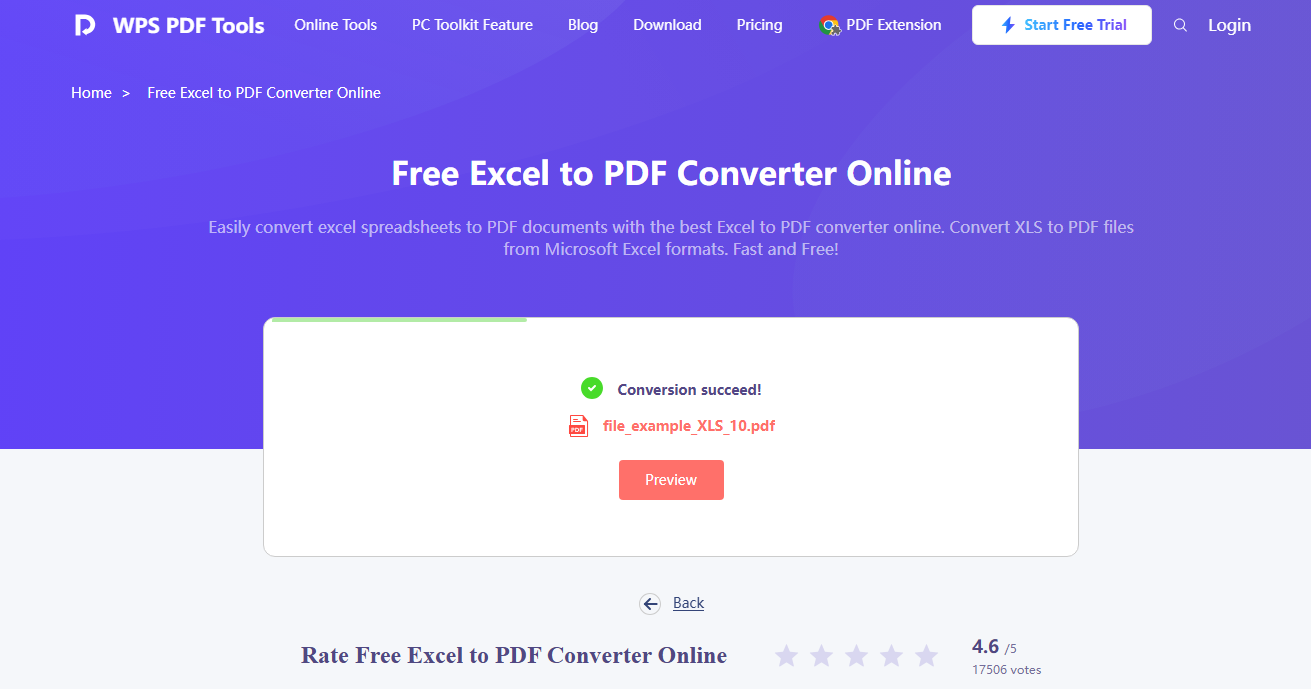
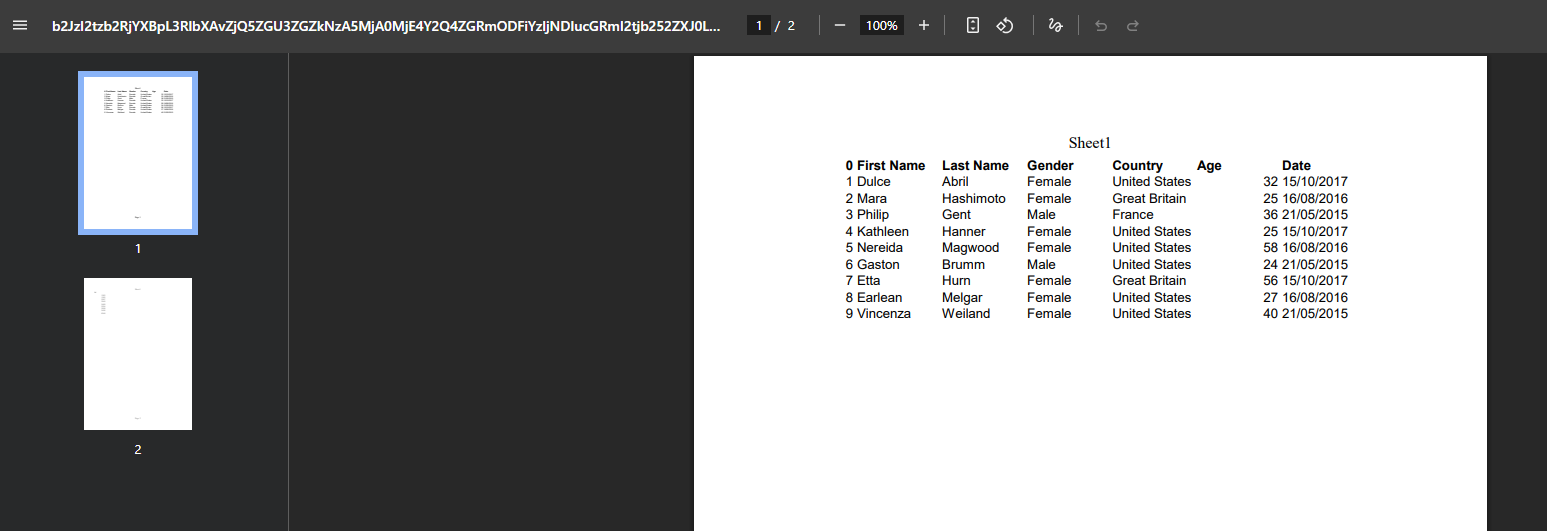
Step 3: Preview and Export PDF
Once converted, review the preview. Make sure all formatting looks right. Then, download your PDF. The formatting will remain intact, and the file will be ready for sharing or printing.
Tips to Ensure Format Accuracy Before Conversion
Follow these few simple steps to prevent formatting problems before uploading your Excel file. Never miss the print area. Select only the data you want to convert. Manually change the selection as necessary. This will make the final PDF have only relevant content.
Then, inspect your page breaks. Open the Page Layout and take advantage of the Page Break Preview feature. You may drag and resize breaks to ensure that your content fits in the right place. This prevents cut-offs and row gaps in your converted PDF.
Look attentively at your columns and rows. Make into shape any that appear too broad or too narrow. This is to have a clean layout upon conversion. You do not want weird page breaks or crowded text on the PDF.
Now, format-lock. Re-verify fonts, alignment and cell formats. You do not want things moving after you upload. To make your PDF look more professional, keep everything consistent.
WPS Sheets offer you greater control. Everything can be previewed, adjusted and refined before conversion. It can assist when you are working on charts, tables, or several sheets.
Print preview is not to be forgotten. It provides you with a preview of what the PDF is going to look like. In that manner, you can edit with finality.
Using these steps, you ensure that your converted PDF appears exactly as you intended it to.
Conclusion
Converting excel files using WPS Office provides you with a dependable method of generating format-retaining PDFs. You do not have to go through the typical headaches of broken charts, misaligned cells or lost fonts. Your spreadsheets remain clean, organized and readable as you designed. You need not be worried about layout changes and dislodged tables.
WPS will be able to manipulate your most complicated data easily and accurately. Excel to PDF is one seamless process that combines compatibility with security and ease. You save time and avoid cleaning up post conversion. All things remain in their place.
The formatting is pretty good, so why not convert a detailed file today and find out how well it holds up? You will see how clean, sharp, and consistent your output is. Be confident in your work, be it in reports, submission, or sharing across devices. In the current digital era where everyone is in a hurry, clear presentation is worth a thousand words. Let WPS Office online tools help keep both presentation and content in ideal shape.